BevCounter for the Web: Count Drinks From Any Browser in Five Minutes
How the BevCounter web app works: open it in a browser on a laptop or phone, point the camera at the bar, and it counts bottle pick-ups and pours with nothing to install.
The short answer: BevCounter's web app runs in the browser you already have. Sign in at manage.bevcounter.com on a laptop or phone, allow the camera, point it at the bar, and it starts counting bottle pick-ups and pours. The AI runs on that device, so no video is sent anywhere, and there is nothing to install.
Key takeaways
Works in a modern browser on a laptop, desktop or phone. No app store, no installer, no special hardware.
Counts bottle pick-ups, and pours (in beta), from a webcam, the phone's camera or a recorded video.
The counting happens on your device. Video never leaves it.
Every count is saved with a timestamp on that device and can be exported as a CSV file.
Plans start at $29 a month, or half that paid yearly.
Why we started with the browser
Most drink-counting and inventory systems ask a bar to buy something first: scales, flow meters, smart spouts or a dedicated camera system with an installer. That is a lot to ask before you even know whether counting will help.
We wanted the first step to cost nothing but five minutes. Almost every bar already has a laptop in the office or a spare phone in a drawer, and both have a camera. A modern browser can run AI models directly on the device's processor or graphics chip. Put those together and you have a drink counter with no new hardware at all.
How it works
BevCounter watches the bar through the camera and does three things many times a second:
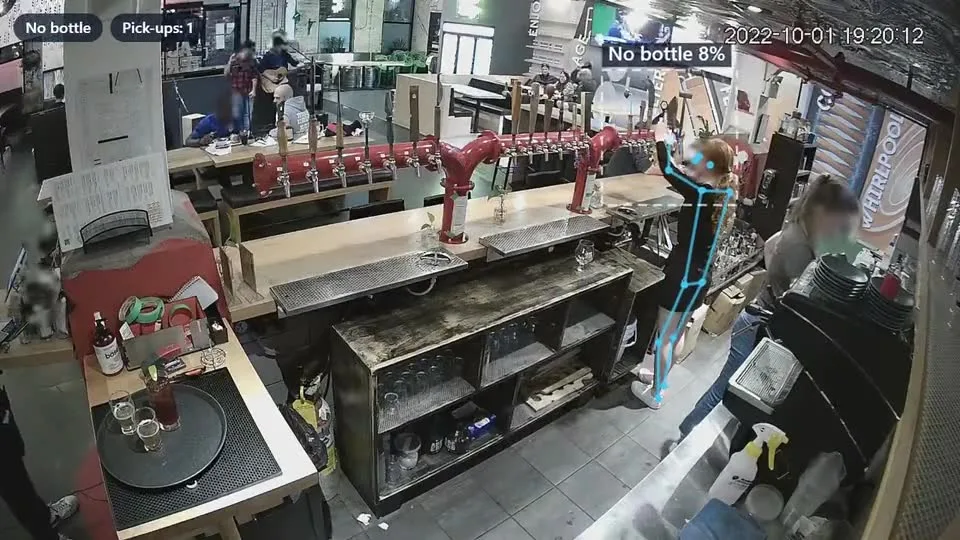
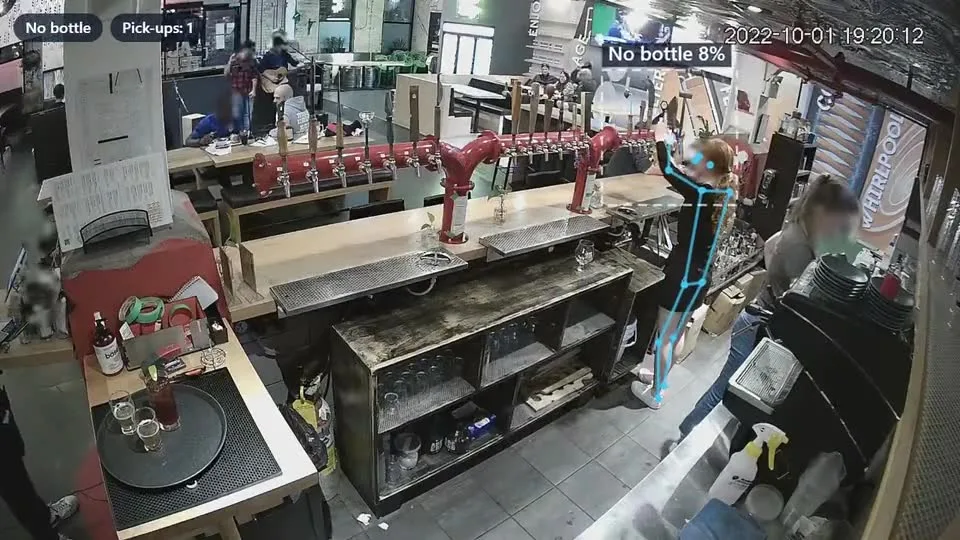
Finds the bartender. A pose model finds the person behind the bar and tracks where their hands are.
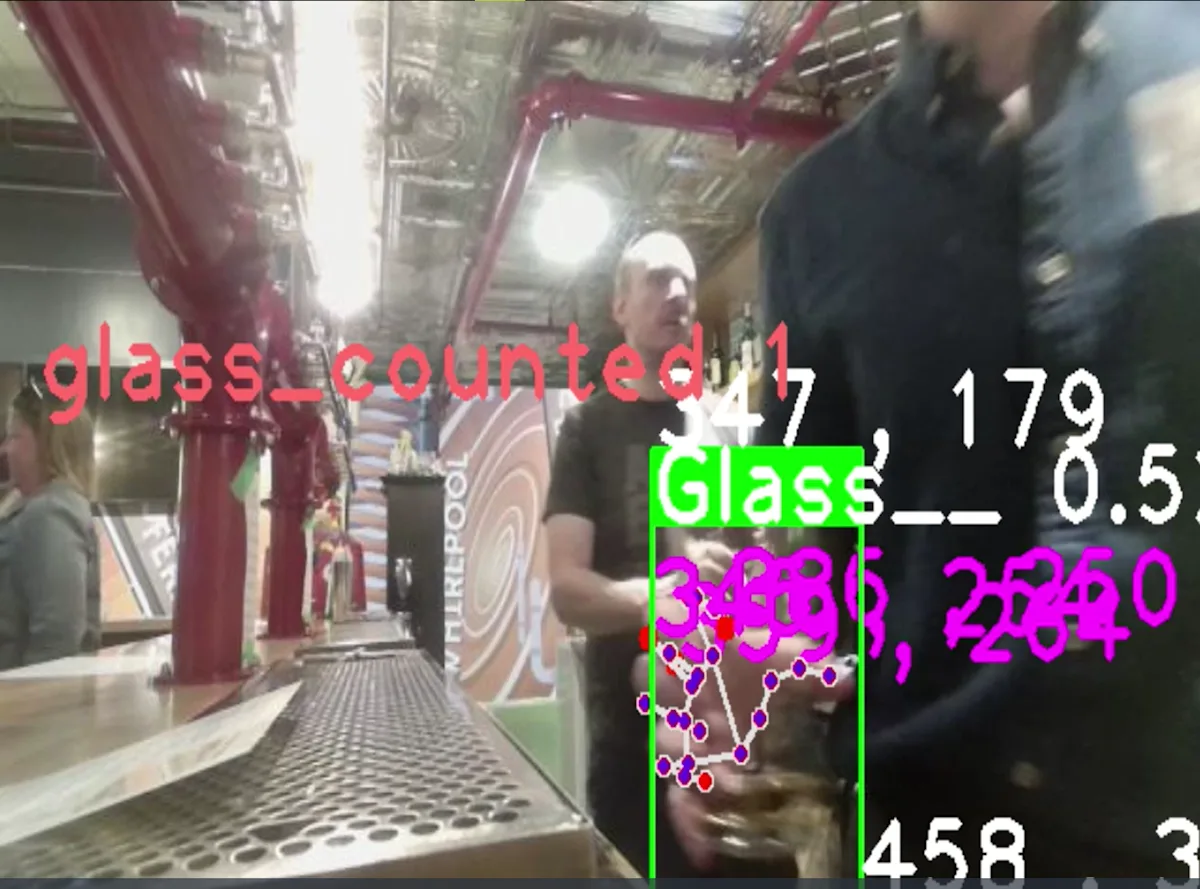
Checks each hand. It looks closely at the area around each wrist and decides whether that hand is holding a bottle or glass.
Turns holding into counts. A hand that holds a bottle for half a second counts as one pick-up. Short moments where the model loses sight of the bottle don't split one pick-up into two; a pick-up ends after 1.5 seconds without holding. Both times can be adjusted in Settings. A separate model looks at arm movement to count pours, which is in beta.
All of this runs inside the browser tab. The models are downloaded once and run on your device, using the graphics chip where the browser supports it (WebGPU) and the processor where it doesn't. No video is uploaded, to us or anyone else.
Getting started
Choose a plan on the pricing page and create your account.
Open manage.bevcounter.com on the laptop or phone you will use at the bar, and sign in with the same account.
Pick a source. Choose the device's camera, or try the built-in sample video first to see how counting looks.
Allow the camera when the browser asks.
Position the device so the camera sees the bartender's hands and the well or back bar (tips below).
Leave it counting through the shift. At the end, compare the count with what your POS says was sold.
Where to put the camera
Counting is only as good as what the camera can see. A few minutes of setup pays off:
See the hands and bottles. The camera needs a clear view of where bottles are picked up and poured: the well, the speed rail, the back bar.
Side-on or slightly above works best. Directly behind the bartender hides their hands; straight down from the ceiling makes bottles hard to tell apart.
Keep it close. Roughly one to three metres from the station is a good range for a laptop or phone camera.
Light the bar. Dim, moody bars are fine for guests but hard for cameras. Avoid pointing the camera at a bright window or light behind the bartender.
One station per device. Each laptop or phone counts what its own camera sees. For two stations, use two devices.
Leave guests out of frame as far as you can. Counting only needs the bar side.
What you get
A live count on screen, with the bartender's skeleton and hand boxes drawn over the video so you can see what the counter sees.
Timestamped history. Every pick-up is saved as soon as it is counted, in that browser on that device, and survives a reload.
CSV export. Download every saved count, with session, source, time and duration, to compare with POS sales in a spreadsheet.
Recorded video. Upload a clip from your security system and count it after the fact.
Counts are stored on the device you counted on. There is no shared online dashboard yet, so if you count on two devices, export from each.
What it needs
A recent version of Chrome, Edge, Firefox or Safari. Chrome and Edge on a laptop are the fastest, because they support WebGPU.
A camera: the laptop's webcam, a USB webcam, or the phone's camera.
Power. Counting keeps the processor busy, so plug the device in for a full shift.
An internet connection to sign in and download the models the first time.
Privacy and your staff
Because the video stays on the device, there is no footage on our servers to leak or to be asked for. You still need to tell your staff what the camera is for and frame it on the bar rather than on people. Our guide to counting drinks with a camera fairly and legally covers notice rules in Ontario, Connecticut, New York and elsewhere.
Coming next: phone and desktop apps
The web app is the quickest way to start, and it will stay the core of BevCounter. Two more ways to count are on the way:
A phone app for iPhone and Android, built for a phone mounted at the bar all shift.
A desktop app for Windows and Mac that connects to the IP security cameras already on your network.
FAQ
Do I need to install anything? No. The web app runs in your browser. You only sign in and allow the camera.
Is my video uploaded? No. The AI runs in the browser on your device and the video never leaves it.
Does it work on a phone? Yes, in the phone's browser. Keep the phone plugged in and the screen on while counting.
Can I count from my security cameras? You can upload recorded clips today. Live counting from network cameras is what the upcoming desktop app is for.
How much does it cost? Plans start at $29 a month, or half that when paid yearly. See the pricing page.