BevCounter for Windows and Mac: Count Drinks From the Cameras You Already Have
A first look at the BevCounter desktop app for Windows and Mac, coming soon: connect to the IP security cameras on your network and count pick-ups and pours, with video staying on the computer.
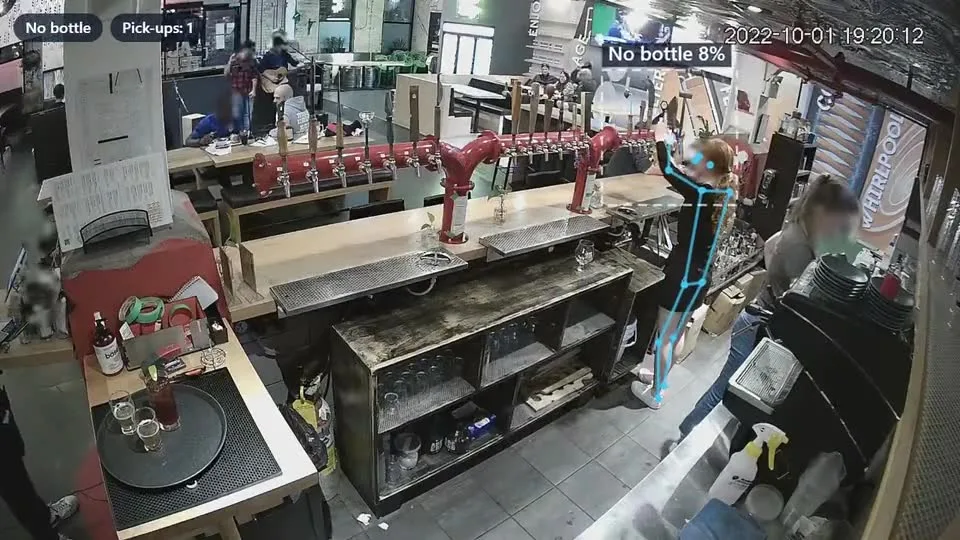
The short answer: the BevCounter desktop app, coming soon for Windows and Mac, does one thing a browser can't: it connects to the IP security cameras on your bar's network and counts bottle pick-ups and pours from them. It finds compatible cameras for you, keeps camera passwords encrypted on the computer, and never sends video anywhere. Until it's released, the BevCounter web app counts from a webcam or a recorded clip today.
Key takeaways
A desktop app for Windows and Mac (Apple-silicon and Intel), with the same console as the web app.
Connects to network cameras: it can search the network for them, or take a camera's address.
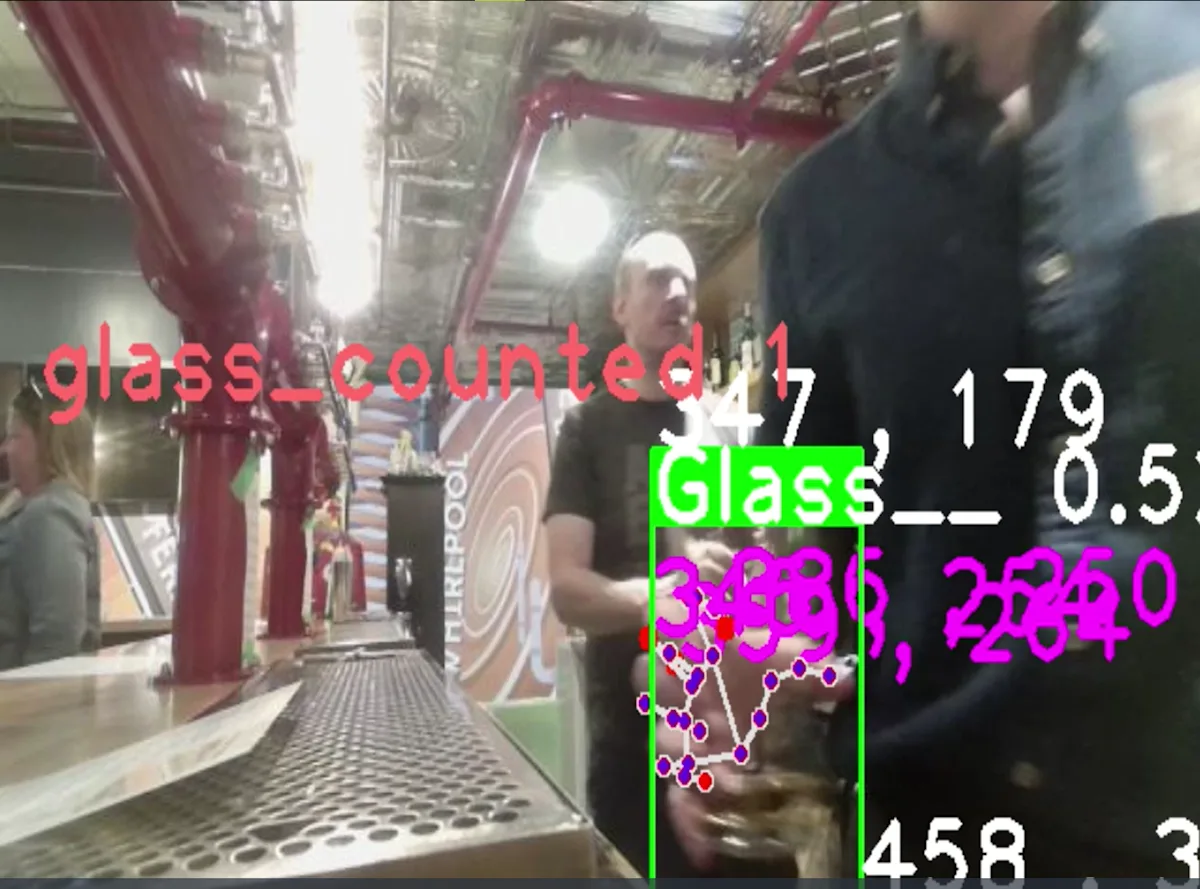
Counts from a network camera exactly like a webcam: pick-ups, and pours (in beta).
Video goes from the camera to the computer and nowhere else.
Camera passwords are stored encrypted on the computer and never reach the counting screen.
Why a desktop app?
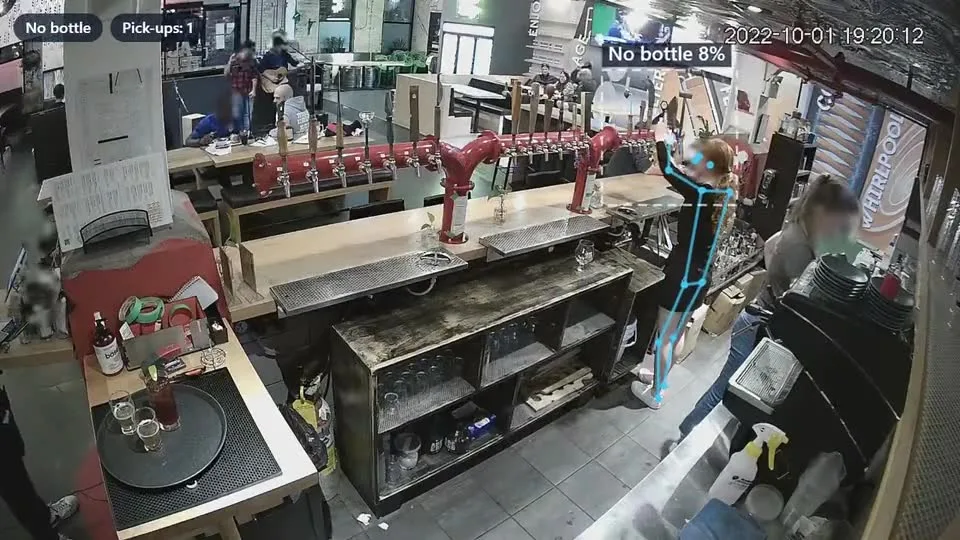
Many bars already have a camera over the bar. It was installed for security, it records to a box in the office, and nobody watches it unless something goes wrong. That camera is often in exactly the right place to count drinks.
A browser can use a webcam plugged into the computer, but it cannot connect to a camera on the network. Security cameras usually stream video over a protocol called RTSP, which browsers don't speak. The desktop app bridges that gap: it connects to the camera, turns its stream into frames, and hands them to the same counter you'd use in the browser.
The result: no new camera, no new mount, no laptop perched on the bar. One computer in the office counts from the camera that's already up.
How connecting a camera works
The desktop app adds a "Network cameras" card to the BevCounter console.
Find cameras. Click search and the app looks for cameras on your network that support ONVIF, the standard most IP security cameras use. Pick yours from the list.
Or type its address. If your camera isn't found, enter its stream address, such as
rtsp://192.168.1.50:554/stream1, or a web address startinghttp://. Your camera's manual or its settings page lists it.Sign in to the camera. Enter the camera's username and password. The app can then ask the camera for its stream address itself.
Save it. Saved cameras appear in the list next time you open the app.
Start counting. Choose the camera as the source, and counting works exactly as it does with a webcam.
If a camera drops off the network (a power blip, a router restart), the app keeps trying to reconnect every few seconds and picks up where it left off.
Built to keep video private
Video stays on the computer. The stream goes from the camera to the app. It is not uploaded to BevCounter or anyone else.
The AI runs on the computer, the same way it does in the browser.
Camera passwords are encrypted using the operating system's own protection (Windows' data protection and the Mac Keychain), tied to the signed-in user on that computer.
Passwords never reach the counting screen. The part of the app that talks to cameras keeps them to itself.
You still need to tell your staff what the camera is now being used for. Reusing a security camera for counting is a new purpose, and your notice or policy should say so. Our guide to counting drinks with a camera fairly and legally explains what to cover.
What it needs
Windows 10 or 11, or macOS on an Apple-silicon or Intel Mac.
A computer on the same network as the camera.
An IP camera that offers an RTSP or HTTP video stream. Most IP security cameras do; check your camera's settings or manual. Cameras that only work through a manufacturer's cloud app may not offer one.
On a Mac: permission for BevCounter to use the camera and to find devices on the local network. macOS asks the first time.
Getting the most from a security camera
Check the angle. Security cameras are often mounted high and wide. Counting works best when the bartender's hands and the bottles are clearly visible, so a camera aimed at the well beats one covering the whole room.
Use the main stream. Many cameras offer a high-quality main stream and a low-quality sub-stream. The main stream gives the counter more to work with.
Mind the lighting. If the camera switches to black-and-white night mode in a dim bar, counting gets harder. Turning night mode off, or adding light over the bar, helps.
When can I get it?
The desktop app is in final testing on Windows and Mac. We'll announce it here when it's ready to download.
In the meantime, the web app counts from a laptop's webcam today, and it can count recorded clips exported from your security system, so you can see how well your existing camera angle works before the desktop app arrives.
FAQ
Will the desktop app cost extra? No. It's included with every BevCounter plan.
Does it work with my camera brand? If your camera supports ONVIF or gives you an RTSP or HTTP stream address, it should work. Most IP security cameras do.
Does it record video? No. It counts from the live stream; your existing recorder keeps doing its job.
Can I count several cameras at once? Each counting window uses one camera at a time.
Does video go to the cloud? No. It goes from the camera to the computer, and the AI runs there.